
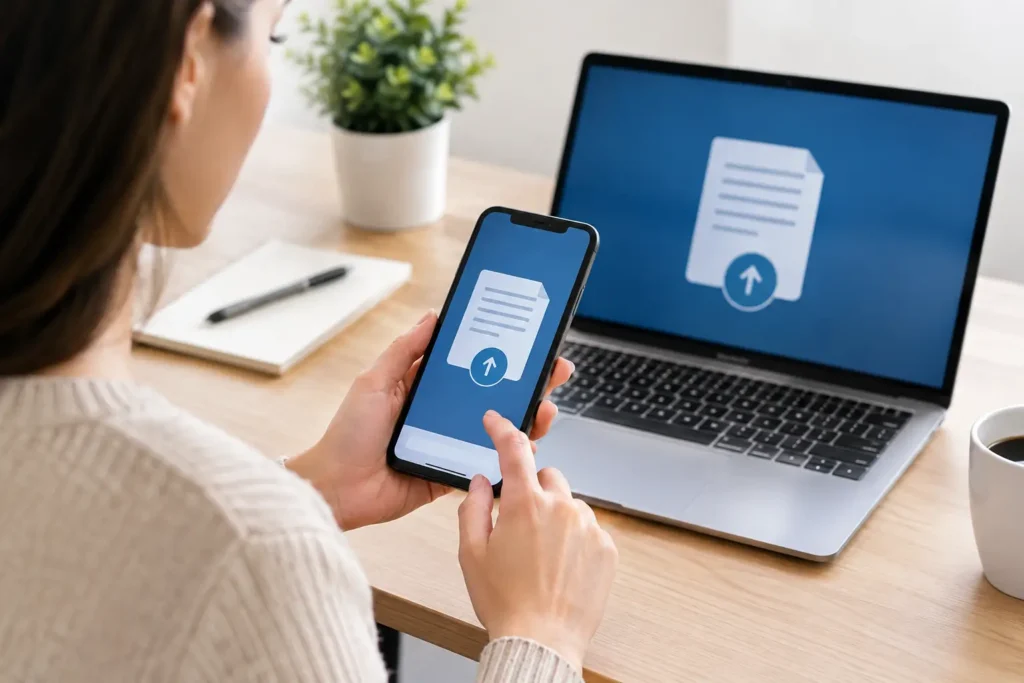
Your phone can be the quickest way to hand in an assignment, especially when you are away from home or need to meet a deadline fast. The question “how do I submit assignments from my phone” is not just about tapping a button. It is about preparing the file properly, confirming it was uploaded and contacting the teacher when something does not work as it should.
For students, submitting from a phone offers flexibility. For teachers and organisations, a clear process reduces lost assignments, wrong files and last-minute messages. With a few steady habits, submission becomes part of an organised learning experience rather than a stressful action just before the deadline.
Before you send the assignment from your phone
The most common cause of a failed submission is not the internet connection. It is a file that was not saved properly, has the wrong name or sits somewhere the student cannot find at the moment of sending.
Start by checking where the assignment is. If you created it in a documents app, save it in the format the teacher asked for, usually PDF or a Word document. PDF is often the safest choice when there are images, tables or special formatting, because it displays more consistently across different devices.
Give the file a clear name. Instead of “assignment final new”, use something like “Surname_Subject_Assignment1”. The teacher immediately recognises whose file it is, and you avoid uploading an older version by mistake.
If the assignment is handwritten, do not take a hasty photo on a dark desk. Use good lighting, check that every page is visible and, where possible, scan the material into a single PDF. Lots of separate photos make marking harder and increase the chance that a page is missing.
A quick check that saves time
Before you open the course platform, open the file itself on your phone. Make sure it is readable, the pages are in the right order and there are no blank or blurry images. Those 30 seconds are worth more than a rushed resubmission after the deadline.
How to submit assignments from your phone on an education platform
Screens differ from system to system, but the logic is usually the same. You open the course, find the specific assignment and choose the option to submit or attach a file. From there, your phone takes you to the device’s files, downloads or the cloud storage you use.
Choose the right file and wait for the upload to finish completely. Do not close the app as soon as the file name appears. In many cases, that means the upload has started, not that the assignment has been handed in.
Next, look for the final option, such as “Submit”, “Hand in” or “Finalise”. In some environments you can attach the file but need a second tap to send it officially to the teacher. This distinction is critical, especially for assignments with a strict deadline date and time.
A unified learning platform such as Classware keeps the assignment, instructions, announcements and communication with the teacher in the same place. The student does not need to switch between email, messaging apps and different folders to understand exactly what to hand in.
Confirm the submission, not just the attachment
The safest sign is a clear status such as “Submitted” or a notification with a date and time. If the platform shows a preview of the file, open it. That way you confirm the right document was uploaded and not an empty file or a draft.
Also take a screenshot of the confirmation when the deadline is close. It does not replace the normal submission, but it can help if there is a technical problem or uncertainty about when it was handed in.
When the assignment has to be sent by email
Email is still useful when the teacher has set it as the submission method or when supplementary material needs to be sent. It does need a little more care, because it does not always provide the same structured confirmation as an education platform.
In the subject line, clearly write the course and your full name. In the body, a short, polite message saying the assignment is attached is enough. You do not need to copy the whole brief or send several messages for the same file.
Before you tap send, check two things: that you have the right recipient and that the attachment really appears in the message. It is easy to write a complete email and forget the attachment. If the file is large, wait for it to load completely and make sure the email is in “Sent” afterwards.
What to do when the file will not upload
If the submission gets stuck, do not keep trying the same thing without checking the cause. First, see whether you have a stable Wi-Fi or data connection. Then check the file size. A high-resolution video or a PDF with dozens of large images may exceed the allowed limit.
You can reduce the size of a PDF or export images at a lower resolution, as long as the text stays readable. If the problem is the file type, convert it to the format the assignment asks for. Do not just change the extension in the file name, because that is not a real conversion and often produces a file that will not open.
If the deadline is close and the technical problem continues, let the teacher know immediately through the official communication channel. Briefly explain what is happening, attach a screenshot if needed and keep trying to submit. Letting them know early shows responsibility, but it should not replace the normal process.
Habits that make submission more reliable
Sending assignments from your phone is much easier when you do not wait until the last minute. Download the instructions early and keep course files in one stable, organised folder. Turn on notifications for new assignments and deadlines, but do not rely on them alone. Checking the course calendar yourself is still useful.
For teachers, it helps to state clearly the accepted file type, maximum size, deadline and whether resubmission is allowed. The more specific the instructions, the fewer students will need support in the last hour. Accessibility does not just mean the assignment opens on a phone. It means every step is understandable, visible and achievable for everyone.
The phone does not have to be the “second-best option” for learning. With good organisation, a check on submission and a platform that connects content, communication and assessment, it can become a reliable way to keep learning continuous, wherever the student is.