
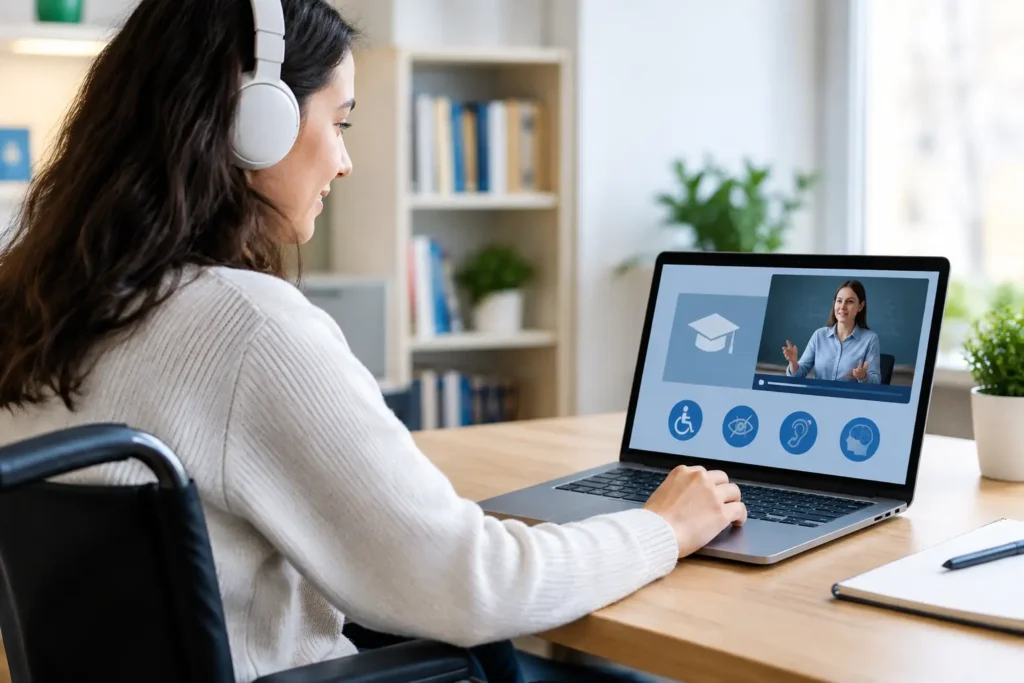
A worksheet saved as an image, a video without subtitles or a button that does not work from the keyboard can exclude a student before learning even begins. This guide to digital accessibility of learning material is not only about technical compliance. It is about every student’s everyday ability to read, listen, take part, answer and receive support in a way that suits their needs.
For schools, universities, tutoring centres and organised education providers, accessibility should be built into the material production workflow, not added afterwards as a fix. When learning content is designed properly from the start, the experience becomes clearer for everyone: for students with disabilities, for mobile users, for those with limited time or connectivity and for teachers who need material that is easy to manage.
What digitally accessible learning material means
Accessible material is material that users can perceive, operate and understand through different ways of access. This includes students with visual, hearing, motor or cognitive difficulties, but also students using a small screen, a screen reader or only a keyboard.
Accessibility does not mean every lesson has to appear the same way for everyone. It means the learning objective remains available even when the way of interacting changes. If, for example, the objective is understanding a historical event, the student can reach it through text, audio narration, a subtitled video or a structured presentation.
The international WCAG standards offer a useful framework with four principles: content must be perceivable, operable, understandable and robust enough to work with different assistive technologies. In teaching practice, these principles translate into simple but meaningful design decisions.
A guide to digital accessibility of learning material in practice
The best starting point is to look at every resource from the student’s point of view. Can they quickly find what they need to do? Can they understand the instruction without relying solely on colour, sound or an image? Can they complete the activity on a phone and with a keyboard?
Text that is easy to read
Clarity helps learning more than complicated formatting. Use short paragraphs, descriptive titles and a logical heading hierarchy. Headings are not just a visual element: they let a screen reader user move quickly between the main sections of the lesson.
Choose a readable font, an adequate size and comfortable line spacing. Avoid long passages in capitals, italics or bold. When you need to explain a new term, give its definition where it appears, rather than assuming every student has the same prior knowledge.
Colour should not be the only indication of meaning. “Correct answers are shown in green” is not enough. It is better to write “correct answers are marked in green and with the ✓ symbol”. That way, the information remains available even when colour perception is limited.
Images, diagrams and PDF files
Every image that carries educational information needs alternative text. Writing “image” or repeating the file name is not enough. Describe its teaching role: “Bar chart comparing water consumption in three regions from 2020 to 2024”.
For complex diagrams, maps and scientific illustrations, a short alt text is not sufficient. Add a more detailed explanation near the image with the key data, trends and the conclusion the student is expected to identify. The description does not need to record every visual detail, only what is necessary for the learning objective.
PDFs are often necessary for printable worksheets or official documents. However, a scanned PDF is usually just an image and is not read correctly by assistive technologies. Where possible, offer the material as a structured page within the platform or as an editable document. If you use a PDF, it needs the correct reading order, heading tags, selectable text and descriptions for visual elements.
Video, audio and live teaching
An educational video needs accurate subtitles, not just an unchecked automatic transcript. Subtitles support students with hearing loss, but they are just as useful in a noisy environment, on a mobile device or when learning a second language.
For material that relies heavily on visual information, such as a demonstration of an experiment or the analysis of a work of art, spoken description of the critical actions is important. Do not just say “as you can see here”. Describe what changes, where it is and why it matters.
In live sessions, accessibility is also linked to organisation. Share the agenda and material in advance, read aloud questions that appear in the chat and allow time for answers. Recording the session helps those who could not attend, but it does not replace clear structure and participatory teaching in real time.
Activities and assessment without unnecessary barriers
Exercises should assess knowledge, not the student’s ability to guess the interface. Instructions need specific language: what must be handed in, in what format, by when and against which criteria. A time limit can be useful in some cases, but you should consider whether it really measures the intended objective or creates irrelevant pressure.
Quizzes and forms need clear field labels, understandable error messages and full keyboard operation. When a student gives a wrong answer, feedback is more valuable when it explains the next step instead of stopping at a red failure message.
It is also useful to offer alternative ways of expression where this does not distort the assessment. A comprehension task can, depending on the objective, be submitted as text, an audio answer or a short presentation. If written expression is specifically being assessed, however, an alternative format is not always suitable. The right choice depends on exactly what you want to measure.
The platform is part of the learning experience
Even perfectly designed content loses its value if the platform is hard to use. Students need predictable navigation, clear unit names, visible progress markers and a consistent way to access announcements, assignments, live sessions and feedback.
Mobile access is especially critical. Many students read material, upload assignments or receive notifications on their phone. That requires buttons of adequate size, forms that do not make typing difficult and content that does not assume a large screen. A consistent experience on computer and phone reduces confusion and strengthens learning continuity.
A complete platform such as Classware can help teachers bring material, live sessions, assessments and communication into one stable environment. Consolidating functions does not guarantee accessibility on its own, but it reduces the points where a student can get lost between different tools and accounts.
Check before you publish
Accessibility needs a short, repeated check before the material reaches the class. It helps to confirm that headings are structured correctly, images have meaningful descriptions, subtitles are available, links and buttons have clear names and the main actions work with a keyboard.
Automated checks can find contrast problems or missing alternative text. They cannot judge whether an image description is useful or whether an instruction is really understandable. That is why human review is also needed, ideally with feedback from students and teachers who use the material in real conditions.
Accessibility is not a project that ends with one setting. It is a teaching habit: designing with more than one way to take part and listening early to where barriers appear. Every improvement, from a correct subtitle to a clearer instruction, gives more students the space to show what they can really learn.